
THE SHORT ANSWER
Test one channel at a time, then verify the complete path
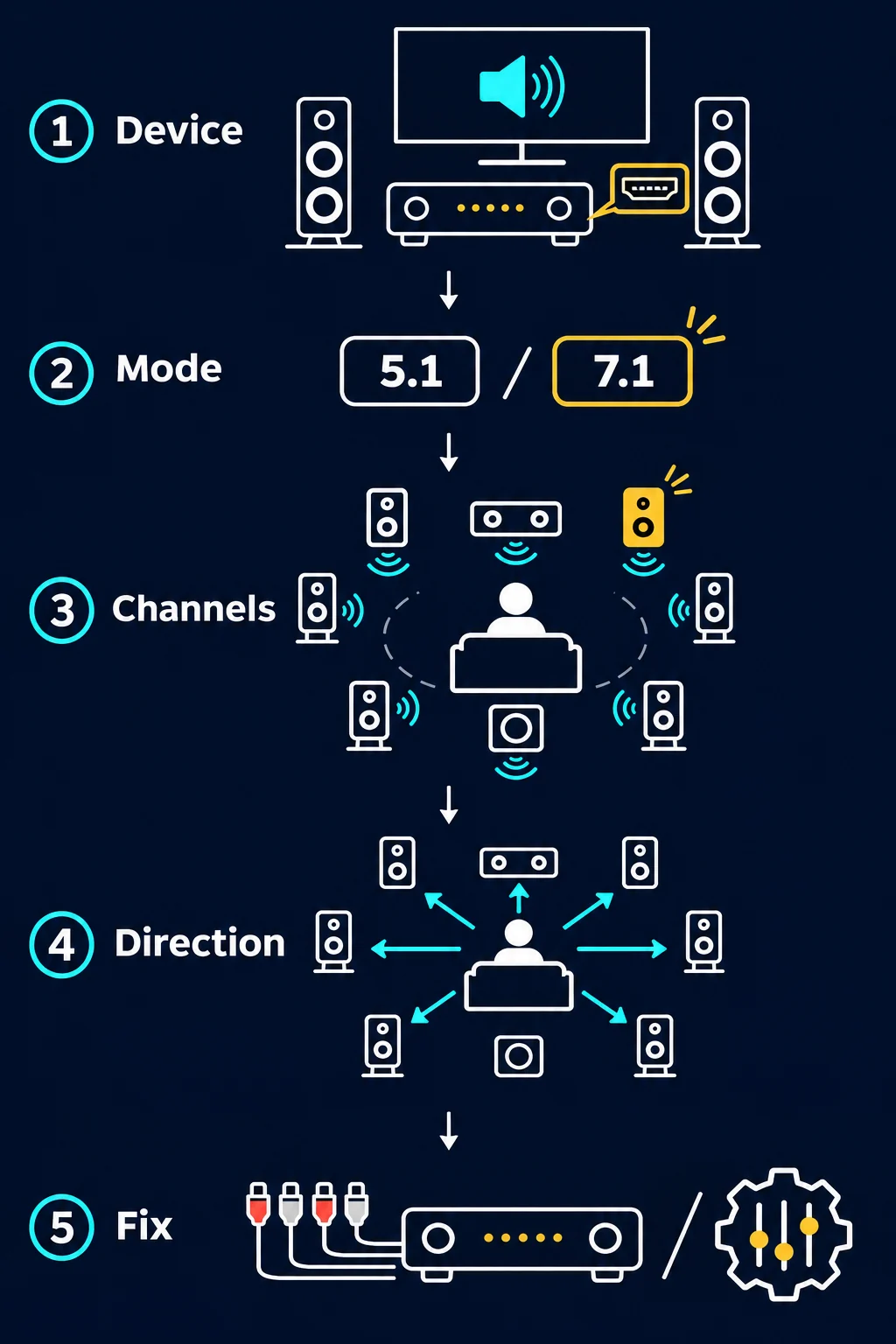
Start with the receiver or operating system test tone. Select the output, choose 5.1 or 7.1, lower the volume, and play each named channel and the subwoofer. Every sound should come from its assigned speaker. Try a surround-enabled movie or game after individual tones work.
A browser test is a routing check: you can report where a tone is heard, but a browser cannot measure calibrated loudness, confirm receiver crossover settings, or prove cable placement. If a channel is silent or misplaced, compare a receiver tone with a second source before replacing hardware.
Keep the master volume low before the first tone. A browser or receiver can begin playback at the wrong level, and hearing safety matters more than a dramatic demo.
KNOW THE CHANNEL MAP
What a Surround Sound Test checks in 5.1 and 7.1
The number describes an audio layout, not a quality score. Know each speaker's role before judging a quiet channel.
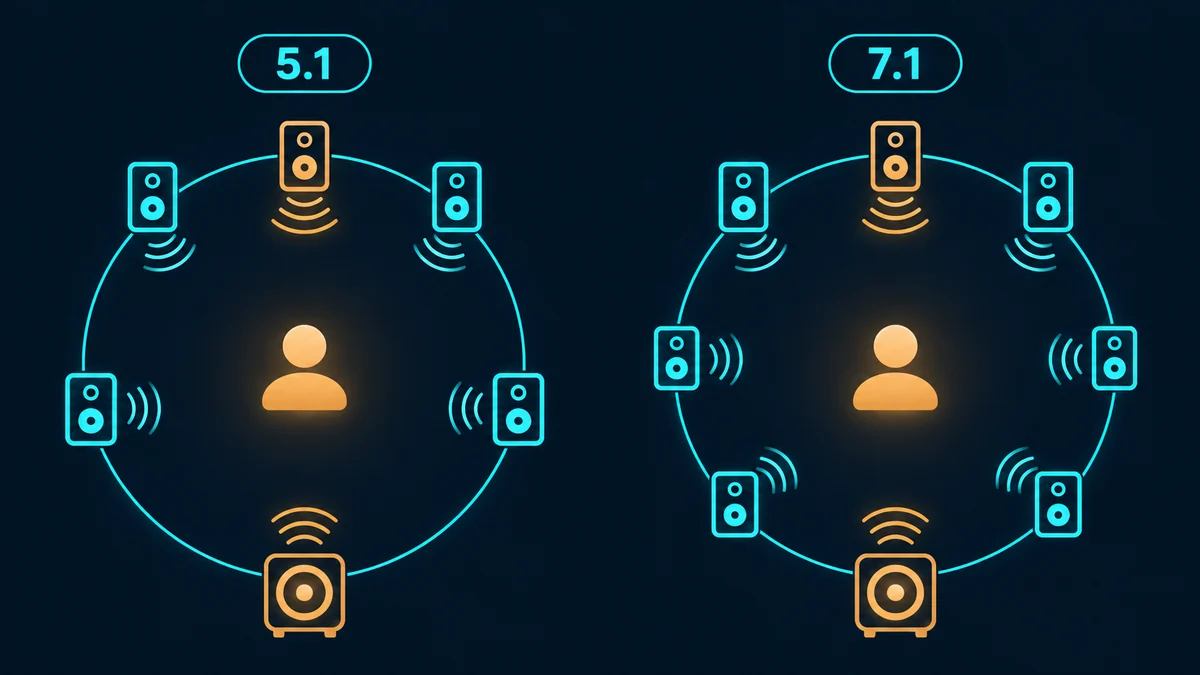
Five channels plus bass
Front left and right carry the main image, the center anchors dialogue, and two surround channels add ambience. The .1 is low-frequency effects usually sent to a subwoofer, not a sixth full-range speaker.
Two added positions
A 7.1 layout adds two channels, often called side or rear left and right. Labels vary by receiver, so follow its speaker diagram and cable markings.
A browser fallback
Many phones, browsers, and wireless profiles expose two channels only. Panning on headphones can suggest direction, but it is not discrete six- or eight-channel output.
BEFORE YOU TEST
Prepare the signal path so the result is meaningful
Change one variable at a time and note what you hear. This prevents a wrong output selection from looking like a failed speaker.
Choose the listening position
Sit near the calibrated position, normally centered between the front speakers. Stay still for the first pass so reflections do not change the apparent direction.
Select the real output
Check the OS, receiver, TV, HDMI, USB, or Bluetooth output. A browser may play to a monitor or dock you are not listening to.
Set a safe starting level
Lower the master volume and disable loudness boosters. Raise it only enough to identify a channel; never compensate for suspected wiring faults with more volume.
Confirm the format
Choose 5.1 or 7.1 only when both source and receiver support it. If the source reports stereo, record that limit instead of claiming discrete surround.
RECEIVER TEST TONE
Use the receiver's own channel check first
A receiver's internal tone bypasses the browser, streaming service, and media file, making it the cleanest first check. Look for Speaker Setup, Level Calibration, Test Tone, or Channel Check, then follow your model's channel diagram.
Listen for the named position. If Front Left plays from the right, suspect assignment, wiring, or a reversed source path. If the receiver tone is correct but a browser test is not, check the computer format before touching speaker terminals.
Open speaker setup
Select the profile matching the physical system. Disable temporary stereo or direct modes that bypass surround.
Choose 5.1 or 7.1
Enable only speakers you own. A disabled channel, second zone, or phantom center can appear silent.
Play every named tone
Wait for each tone to finish. Record heard, silent, swapped, or unclear instead of relying on memory.
Save the smallest change
Reseat one cable or correct one setting, then repeat the same channel. Retest in a known state if the result becomes confusing.
COMPUTER PATH
How to test surround sound on a Windows PC
Windows exposes formats supported by the selected playback device, driver, adapter, and connection.
Select the playback device
Open Sound settings, select the active output, and open its speaker setup. Avoid switching devices while a game or call is running.
Configure the layout
Choose 5.1 or 7.1 if listed. Stereo-only may indicate a driver, adapter, connection, or wireless limit.
Run the speaker buttons
Play each channel from the built-in diagram. A tone from the wrong speaker signals routing or wiring trouble.
Check the app separately
Games and calls may override Windows output. Set the app to the same device and repeat the check.
BROWSER AND STREAMING LIMITS
Know what online surround sound tests can and cannot prove
An online page is useful when no receiver tone is available, but it is not room calibration or an interface specification.
- A browser may expose stereo even when a receiver supports 5.1 or 7.1. Panning can test headphones, but it is simulated direction.
- Streaming apps may downmix when the account, device, cable, app, or title lacks surround support. One movie scene cannot prove every channel works.
- Correct position does not prove level, crossover, phase, frequency response, or room correction. Use the receiver's calibration tools for those jobs.
- Microphone permission is for input monitoring, not output accuracy. A denied request should not block a speaker check.
- Prefer a receiver tone or trusted source over an unknown audio download.
READ THE RESULT
Use the symptom to choose the next safe check
A failed test is a clue, not a verdict. Match the repeatable symptom and change one layer at a time.
| What you hear | Likely layer | Next step |
|---|---|---|
| Every channel plays from its speaker | The selected path passes the channel check | Try a known surround title at a comfortable level. |
| One channel is silent on receiver and PC | Wire, terminal, driver, or disabled channel | Power down, reseat one cable, and repeat the same tone. |
| Tone comes from another position | Wiring, assignment, or downmix | Compare the receiver diagram and source format before swapping components. |
| Receiver works but browser does not | Browser, driver, format, or stereo fallback | Check the output device and whether the test is discrete or simulated. |
| Only one title fails | Mix, app setting, or protected output | Try a second known surround source before changing speaker wiring. |
Stop when the same channel fails on multiple sources with known-good connections and settings. Consult the receiver manual or service path instead of repeating loud tests.
COMMON QUESTIONS
Surround sound test questions
These answers keep the test focused on channel routing and honest limits rather than a vague impression of louder audio.
How do I test my 5.1 surround sound?
Select the 5.1 output profile, lower the volume, and play the receiver or Windows test tone for front left, center, front right, surround left, surround right, and the subwoofer. Confirm each tone comes from the named position, then check a known surround-enabled source.
How do I test 7.1 surround sound?
Choose 7.1 only when the receiver and source expose eight channels. Play every named channel, including the two extra side or rear positions, and follow your receiver's diagram because channel labels vary between models.
Can a browser test real 5.1 speakers?
Sometimes, but not always. The browser may be limited to stereo and simulate movement by panning. Use the receiver's internal test tone to prove discrete channels, and use an online page as a convenient secondary check.
Why do my surround speakers play from the front?
The source may be downmixed to stereo, the receiver may be in Direct or Stereo mode, or the channel wires may be assigned incorrectly. Compare the receiver tone with the computer or streaming source before moving speakers.
Does a surround sound test measure volume or sound quality?
No. It can show whether a playback step reaches a speaker or whether you hear the expected direction. It cannot provide a calibrated decibel reading, prove frequency response, or replace room correction.